
Overview
Purpose: Explain the Multi-Factor Authentication on the 360 and how to set it up, complete it, or reset it.
Applies to: 360 Users
Domain: 360
When to Use This SOP
Use this when 360 asks for Multi-Factor Authentication after email and password, or after Google sign-in.
That authentication is a 6-digit code from one of the three methods:
-
an authenticator app, such as Google Authenticator, Authy, or 1Password
-
a text message to a US mobile number
-
an email to the address used to sign in
Step-by-Step Instructions
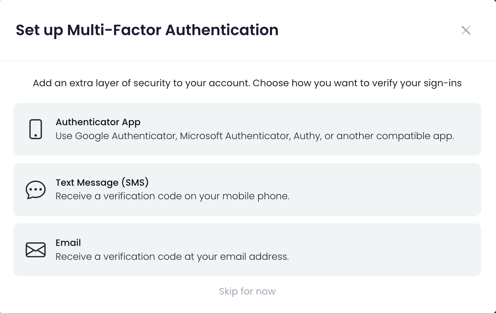
Set up an authenticator app
1. Sign in with email and password, or with Google as normal on 360
2. On the method screen, choose Authenticator App.
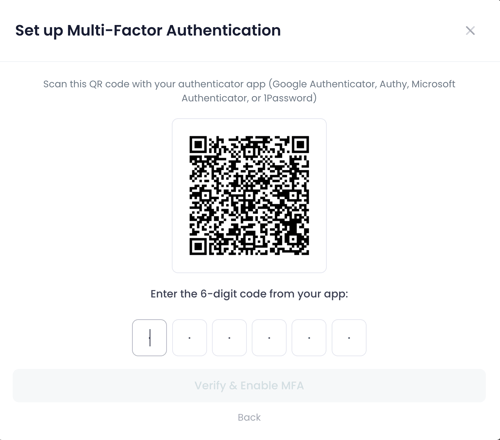
3. Scan the QR code with the authenticator app, or enter the setup key manually.
4. Enter the 6-digit code from the app.
5. When the code is accepted, sign-in completes and that method is saved.
Set up text message
1. Sign in with email and password, or with Google as normal on 360
2. On the method screen, choose Text Message (SMS).
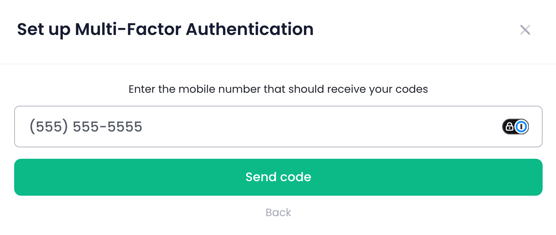
3. Enter a US mobile number. +1 is optional. A 10-digit number is enough.
4. Enter the code from the text. The screen shows a masked version of the number.
5. When the code is accepted, sign-in completes and that method is saved.
Text message verification is available for US numbers.
Set up email
1. Sign in with email and password, or with Google as normal on 360
2. On the method screen, choose Email.
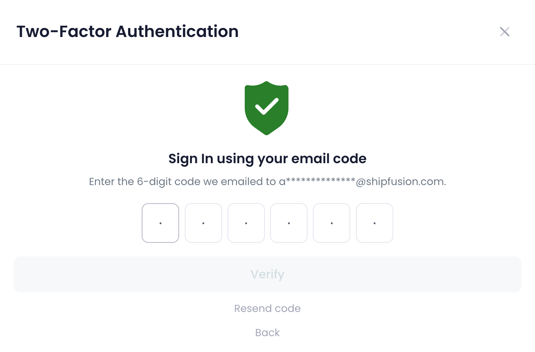
3. Shipfusion sends a 6-digit code to the login email. The address is not typed in.
4. Enter the code. The screen shows a masked version of that email address.
5. When the code is accepted, sign-in completes and that method is saved.
The email code expires after 10 minutes and works once.
Skip setup
Skip for now appears on the method screen when the account is allowed to postpone setup. This will available until Jan 31, 2027.
1. Choose Skip for now.
2. Sign-in completes without a code.
3. The setup screen stays hidden for 3 days.
After January 31, 2027, accounts that are offered verification and have not finished setup need to finish it. Skip for now is no longer available after that date.
Sign in after setup
1. Sign in with email and password, or with Google as normal on 360
2. If this browser completed verification in the last 7 days, 360 opens with no code.
3. Otherwise, enter the current 6-digit code.
-
Authenticator app: use the code currently shown in the app.
-
Text message: a code is sent to the saved number.
-
Email: a code is sent to the login email.
The 7 days start when the code is accepted. Signing in again during that window does not extend it. A different browser, a private window, or a browser whose saved site data was cleared asks for the code again. Changing the password also asks for the code again on the next sign-in.
Get a new code
On the code screen, use Resend code for text message or email.
1. Wait 30 seconds between resend requests.
2. Stay within 5 text or email codes in an hour. That includes the code sent when the screen opens, codes sent during setup, and resends.
3. For an authenticator app, read the new code from the app. There is nothing to resend.
Reset the method
1. Open the 360 profile.
2. In Multi-Factor Authentication, confirm the saved method.
3. Choose Reset, then confirm.
Reset removes the saved method. The next sign-in asks for setup again when the account is still offered verification. If sign-in is blocked because the code is unavailable, contact Shipfusion and ask for a reset.

Expected Outcome
Sign-in completes, and one method is saved: authenticator app, text message, or email.
On the same browser, the code can be skipped for 7 days after a successful check. The method belongs to the user. Another person on the same browser completes their own check. A wrong password fails on the first sign-in step. The verification screen appears after the password or Google sign-in succeeds.
360 users are created by Shipfusion. This check does not add self-serve registration.
Common Issues & Troubleshooting
| Issue | Likely Cause | Resolution |
| The code is rejected | The code is old, already used, or from a different method | Use the newest code. Email codes last 10 minutes and work once |
| Session expired. Please log in again. | The sign-in screen was left open too long | Sign in again. Setup that is not finished within 5 minutes starts over |
| The account is locked for 10 minutes | Five unsuccessful sign-in attempts | Wait 10 minutes, then try again |
| The text never arrives | The number is not a US mobile number, or the hourly limit was reached | Confirm the number, then use Resend code after 30 seconds. After 5 codes in an hour, wait for the hour to pass |
| The email never arrives | The message is filtered, or the code expired | Check the login inbox, including spam. Request a new code within the same limits |
| Setup appears again after skip | Three days have passed, or the account is now required | Finish setup, or skip again if Skip for now is still shown |
| A code is required on a browser that was already verified | Seven days have passed, the browser changed, the password changed, or the method was reset | Enter the current code. The browser is trusted again for 7 days |
Escalation
Contact Shipfusion and include:
-
the email address used to sign in
-
whether this was setup or a code for a method already saved
-
the method: authenticator app, text message, or email
-
the exact message on the screen
-
the approximate time of the attempt
FAQ
Do I choose whether my company requires this?
Shipfusion controls whether the account is offered verification and whether it is required. The person signing in chooses the method: authenticator app, text message, or email. I skipped setup.
Why am I seeing it again?
Skip lasts 3 days. After that, the setup screen can appear again. If the account is changed to required, the next sign-in asks for setup and does not offer skip.
I set this up, and I am still asked for a code.
The browser trust lasts 7 days, on the browser that completed the check. A new browser, a private window, a password change, or a reset asks for the code again.
I no longer have the phone or authenticator app.
Use Reset on the 360 profile if a trusted browser still allows sign-in. If sign-in is blocked, contact Shipfusion and ask for an MFA reset. Choose a method again at the next sign-in.